
Google Drive: import private video files
Google Drive is coming soon. See its current availability, the planned read-only import flow, and how to paste a Drive share link today.
The Google Drive connector pulls video files straight from Drive into Framesite, so footage sitting in My Drive or a shared drive can become source-backed pages without a download-and-reupload dance. The connection is read only: Framesite lists your video files and copies only the ones you choose.
What you need
A Google account that can see the files, and an admin role in your Framesite workspace to connect it. It works with shared drives, so a client sharing a folder with you is enough for those files to show up.
Adding the app
Open Import in your workspace
Sign in to Framesite and open the Import view. The Google Drive card sits with the other video sources. You need an admin role in the workspace to connect accounts. If the card is not shown, the connector is not enabled for your workspace yet.
In Framesite- Import
- Connected libraries
- Google Drive
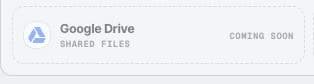
The Google Drive card shows its current availability directly in Import. Click Connect
You are sent to Google's own sign-in and consent screen, the same Google app you sign in with. It lists exactly what Framesite asks for: read-only access to your Drive files. Framesite never sees your Google password.
Approve and return
After you approve, Google sends you back to Framesite and the card shows Connected. The offline token is stored encrypted and used only on our servers.
Using the app
Once connected, the Google Drive card lists your video files across My Drive and shared drives. Tick the videos you want and add them to the import queue. Before anything runs, Framesite shows what the run produces and how it draws from your current allowance. When the import runs, the worker streams the original file directly from Drive with your authorized token, so the heavy bytes never pass through a browser and processing starts from the real source, not a re-encode.
Processing produces a transcript tied to exact timestamps, chapters, verbatim quotes, claims marked by how well they are sourced, and named speakers. Nothing publishes without your review and approval.
Troubleshooting
- The card is not shown. The connector is not enabled for your workspace yet, or is not enabled for your workspace yet. You can still paste a Drive share link in Import without connecting.
- The connect button says denied. Connecting is limited to workspace admins. Ask a workspace admin to connect, or to make you an admin.
- The connection shows needs attention. This means the token was revoked. Click Connect again to reauthorize; your imported videos are unaffected.
Removing the app
Open the Google Drive card in Framesite and click Disconnect. This revokes the grant at Google and deletes the stored token from our systems immediately, ending all further access in one step.
After removal, Framesite can no longer see your Drive files. Videos you already imported remain in your Framesite library, because they are your workspace content; delete them there whenever you want, or ask us to. Reconnecting later starts a fresh authorization from the beginning.
Common questions
- Which Google Drive videos can Framesite see?
- The video files your Google account can see, across My Drive and any shared drives, read only. That includes a folder a client shared with you, which makes shared drives a good fit. Framesite never edits, deletes, or adds anything in Drive.
- Do I have to connect my whole Drive to import one video?
- No. You can always paste a Drive share link in Import without connecting at all. Connecting is for browsing and pulling your video files directly; the paste-a-link path stays available either way.
- What happens to my data if I remove the app?
- When you click Disconnect on the Google Drive card, we revoke the grant at Google and delete the stored token immediately. Videos you already imported stay in your Framesite workspace, because they are your content there; you can delete them from your library at any time.
- Is my Google Drive content used to train AI models?
- No. Content from connected services, including Google Drive, is never used to train any machine learning model, ours or a provider's. It is processed only to build the transcripts and pages you asked for.