
HubSpot: publish, enrich, and ground Frame
Connect HubSpot to publish and enrich pages as drafts and read CRM signals that ground Framesite. Adding, using, troubleshooting, and removing the app.
The HubSpot connector links your HubSpot account to Framesite so approved pages can be published as drafts on your HubSpot CMS blog, and so Framesite can ground its work in your real CRM signals. Anything Framesite writes to HubSpot is a draft; nothing goes live until you and your client approve it and publish it inside HubSpot.
What you need
- A HubSpot account.
- For publishing, a HubSpot CMS blog. Framesite auto-detects your blog at connect.
- A HubSpot admin to approve the connection.
Connecting HubSpot
Open Destinations & connections
Sign in to Framesite, open Settings, then Destinations & connections. The HubSpot card sits with the other destinations. You need a workspace admin role to connect accounts.
Click Connect HubSpot
You are sent to HubSpot's own consent screen. It lists exactly what Framesite asks for: blog content, and read of contacts, deals, and forms. Framesite never sees your HubSpot password.
In Framesite- Settings
- Destinations & connections
- HubSpot
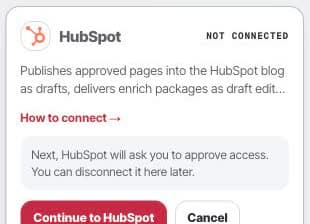
Open the HubSpot setup card to connect publishing and CRM grounding for the right portal. Approve and return
After you approve, HubSpot sends you back to Framesite and the card shows Connected. Framesite auto-detects your blog at connect and stores an encrypted offline token, used only on our servers and never shown back to you.
What it does
The HubSpot connection works two ways: it writes drafts you approve, and it reads to ground Framesite's understanding of your business.
- Write. Framesite can publish an approved page as a draft blog post, and can deliver enrichment (structured data) as a draft edit to an existing HubSpot blog post, site page, or landing page. It never pushes anything live; every change stays a draft for you to publish in HubSpot.
- Read. Framesite reads your existing HubSpot pages to find enrich opportunities, and reads CRM signals (contacts, deals, and forms) to ground its understanding of your business. Nothing from the CRM is published.
Troubleshooting
- The connect button says denied. Connecting is limited to workspace admins. Ask a workspace admin to connect, or to make you an admin.
- Publishing is blocked. If no blog is selected, publishing is blocked with a clear message. Pick or create a HubSpot CMS blog, then try again.
- The connection shows needs attention. This means the connection needs reconnecting. Click Connect HubSpot again to reauthorize; your existing drafts are unaffected.
Removing the connection
Open the HubSpot card and click Disconnect. This deletes the stored token from our systems immediately and stops all further access. Drafts you already created stay in HubSpot, because they are your content there. Reconnecting later starts a fresh authorization from the beginning.
Common questions
- Does connecting HubSpot publish anything live?
- No. Anything Framesite creates in HubSpot is a draft. An approved page becomes a draft blog post, and enrichment lands as a draft edit to an existing post or page. It stays a draft until you review and publish it in HubSpot yourself.
- Is my HubSpot CRM data published on my site?
- No. Framesite reads CRM signals such as contacts, deals, and forms only to ground its understanding of your business. Nothing from the CRM is ever put on a published page.
- Is the HubSpot connector public in the Marketplace?
- Not yet. HubSpot is available in workspaces where Framesite's private app is enabled, but the public Marketplace listing has not been submitted.
- What happens to my data if I disconnect?
- Disconnecting deletes the stored token from our systems immediately and stops all further access. Drafts you already created stay in HubSpot, because they are your content there.