
Webflow: publish into a CMS collection
Connect a Webflow site with an API token and collection ID to publish approved pages as draft CMS items.
The Webflow connector creates an approved Framesite page as a staged draft CMS item in a collection you choose. It authenticates with a Webflow site API token using CMS API v2, and it is write-only: Framesite writes into the target collection and does not read the rest of your Webflow content back.
What you need
A Webflow API token with CMS access, the target Collection ID for the collection you want items created in, and the body field slug of that collection. The body field slug defaults to the Webflow blog template's post-body, but it must match your collection's actual field. You create the API token in your Webflow site settings under Apps and integrations. Connecting requires a workspace admin.
Connecting Webflow
Open the Webflow card
In Framesite, open Settings, then Destinations & connections, and find the Webflow card. Connecting destinations is limited to workspace admins.
Enter your details
Paste the API token, the Collection ID, and the body field slug. Double-check the slug against your collection's field before saving.
In Framesite- Settings
- Destinations & connections
- Webflow
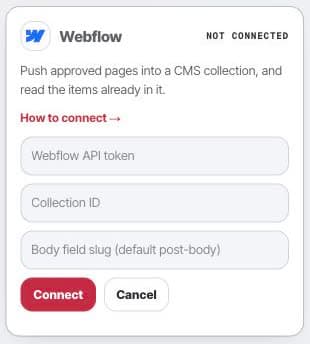
Open the Webflow setup card to connect the site and the collection that will receive approved pages. Validate and save
Framesite validates the token against the collection, then saves. The token is stored encrypted in our vault and is never displayed again.
What it does
When you approve a page, Framesite creates it as a staged draft CMS item in the collection you named. Re-syncing the same page updates the same item rather than creating a duplicate. Framesite does not publish the item live; you review and publish it in Webflow. This connector is write-only and does not read your Webflow content back.
Troubleshooting
- Writes fail on the body field. The body field slug must exactly match a field in your collection. Confirm the slug in Webflow and update it in the connection.
- The connect button says denied. Connecting is limited to workspace admins. Ask a workspace admin to connect, or to make you an admin.
- The token is rejected. Make sure the API token has CMS access and that the Collection ID belongs to the same site as the token.
Removing the connection
Open the Webflow card and click Disconnect. This removes the stored token from our systems immediately and ends all further access. Any items Framesite already created stay in Webflow, because they are your content there; keep or delete them as you like. Reconnecting later starts from a fresh token.
Common questions
- Does Framesite publish live CMS items?
- No. Framesite creates the item as a staged draft in your collection. It does not go live on your site until you publish it in Webflow.
- Why does the body field slug matter?
- Framesite writes the page body into that exact field. The slug must match a real field in your collection, or the write fails. The default, post-body, matches the Webflow blog template.
- Does Framesite read my Webflow content?
- No. Webflow is a write-only destination. Framesite creates and updates items in the collection you point it at; it does not read the rest of your Webflow content back.
- What happens to created items if I disconnect?
- Disconnecting removes the stored token so Framesite can no longer reach your site. Any items already created stay in Webflow for you to keep or delete.