
WordPress: publish and enrich your site
Connect WordPress with an application password to publish approved pages as drafts, read your existing posts, and write schema onto live pages.
The WordPress connector publishes an approved Framesite page to your WordPress site as a draft post, with its featured image and structured data attached. It authenticates with a WordPress Application Password over HTTPS, and it is the one destination that can also read your existing content back to find pages worth enriching.
What you need
A WordPress user who can write posts, and an Application Password for that user. Generate the password in WP admin under Users then Profile then Application Passwords; it is separate from your login password. You will enter three things in Framesite: your site URL, your WordPress username, and that application password. Optionally set the post type, which defaults to posts but can be pages. Connecting requires a workspace admin.
Connecting WordPress
Open the WordPress card
In Framesite, open Settings, then Destinations & connections, and find the WordPress card. Connecting destinations is limited to workspace admins.
Enter your details
Provide your site URL, your WordPress username, and the Application Password. Choose the post type if you want the page to land as a page rather than a post.
In Framesite- Settings
- Destinations & connections
- WordPress
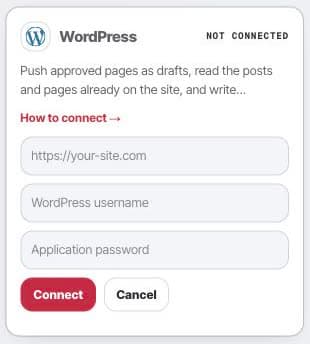
Open the WordPress setup card to enter the site URL, username, and application password. Validate and save
Framesite calls the WordPress REST API to confirm the credentials work and that the user can write, then saves. The application password is stored encrypted in our vault and is never displayed again.
What it does
When you approve a page, Framesite writes it to WordPress as a draft post, never auto-published. It attaches a featured image when one is available and embeds the page's structured data (JSON-LD) into the post. Re-syncing the same page updates the same draft rather than creating a duplicate.
WordPress also has a read lane. Framesite can read your existing posts and pages to find enrichment opportunities, and can write enrichment schema onto an existing page as a draft revision for you to review. It does not publish those revisions.
Troubleshooting
- The connect button says denied. Connecting is limited to workspace admins. Ask a workspace admin to connect, or to make you an admin.
- The connection shows needs attention. The credentials did not authenticate. Regenerate the Application Password in WP admin and enter the new value.
- Framesite cannot reach the site. The site must be reachable over HTTPS from our servers. Check that the site URL is correct and that the REST API is not blocked.
Removing the connection
Open the WordPress card and click Disconnect. This removes the stored credential from our systems immediately and ends all further access. Any drafts Framesite already pushed stay in WordPress, because they are your content there; keep or delete them as you like. Reconnecting later starts from a fresh set of credentials.
Common questions
- Does Framesite publish live posts on my site?
- No. Every page Framesite sends arrives as a draft post in WordPress. It never appears on your site until you open WordPress and publish it yourself.
- Where do I create the Application Password?
- In WP admin, go to Users then Profile and scroll to Application Passwords. Generate one for Framesite and paste the value into the connection form. It is different from your normal login password.
- Can Framesite read my existing WordPress content?
- Yes. WordPress is the one destination that also reads back your existing posts and pages, so Framesite can spot pages worth enriching and write enrichment schema onto one as a draft revision. It never publishes those changes for you.
- What happens to pushed drafts if I disconnect?
- Disconnecting removes the stored credential from Framesite so it can no longer reach your site. Any drafts already pushed stay in WordPress; they are yours to keep, edit, or delete.