
Zoom: import your cloud recordings
Zoom is coming soon. See its current availability and the planned read-only flow for importing cloud recordings.
The Zoom connector pulls your finished cloud recordings straight from Zoom into Framesite, so webinars, customer calls, and trainings can become source-backed pages without a download-and-reupload dance. The connection is read only: Framesite lists your recordings and copies only the ones you choose.
Adding the app
Open Import in your workspace
Sign in to Framesite and open the Import view. The Zoom card sits with the other video sources. You need an admin role in the workspace to connect accounts.
In Framesite- Import
- Connected libraries
- Zoom
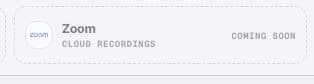
The Zoom card shows its current availability directly in Import. Click Connect Zoom
You are sent to Zoom's own sign-in and consent screen. It lists exactly what Framesite asks for: read access to your recordings and basic profile. Framesite never sees your Zoom password.
Approve and return
After you approve, Zoom sends you back to Framesite and the card shows Connected with your account name. The access credential is stored encrypted and used only on our servers.
Using the app
Once connected, the Zoom card lists your cloud recordings, newest first, with the meeting topic, date, duration, and file size. Tick the recordings you want and add them to the import queue. Before anything runs, Framesite shows the detected length and how the run draws from your current allowance. Each import copies the original recording file Zoom wrote, so processing starts from the real source, not a screen capture.
Processing produces a transcript tied to exact timestamps, chapters, verbatim quotes, claims marked by how well they are sourced, and named speakers. Nothing publishes without your review and approval.
Troubleshooting
- The card says no recordings found.Cloud recording requires a paid Zoom plan, and recordings must have finished processing on Zoom's side. Local recordings on your computer are not visible to the connector; upload those as files instead.
- The connect button says denied. Connecting is limited to workspace admins. Ask a workspace admin to connect, or to make you an admin.
- The connection shows needs attention. Zoom access tokens can be revoked from the Zoom side, for example after a password reset. Click Connect Zoom again to reauthorize; your imported videos are unaffected.
- An import failed.The queue shows the reason on the run. Most failures are a recording still processing on Zoom's side; retry after it finishes. If it persists, contact support at the address below.
Removing the app
You can disconnect from either side, and both end Framesite's access:
- From Framesite: open the Zoom card and click Disconnect. This deletes the stored access credential from our systems immediately and stops all further access.
- From Zoom: go to the Zoom App Marketplace, open Manage, then Added Apps, and remove Framesite. Zoom sends us a deauthorization notice and we delete the stored credential and connection record immediately.
After removal, Framesite can no longer see your Zoom account or recordings. Videos you already imported remain in your Framesite library, because they are your workspace content; delete them there whenever you want, or ask us to. Reconnecting later starts a fresh authorization from the beginning.
Common questions
- Which Zoom recordings can Framesite see?
- Cloud recordings on the connected Zoom account. Cloud recording requires a paid Zoom plan; free Zoom accounts record locally to your computer, and Framesite cannot see local recordings. You can upload those as files instead.
- Does Framesite change anything in my Zoom account?
- No. The connection is read only. Framesite lists your cloud recordings and copies the ones you pick. It never edits, deletes, or adds anything in Zoom.
- What happens to my data if I remove the app?
- When you uninstall Framesite from your Zoom account, Zoom notifies us and we delete the stored connection credential immediately. Videos you already imported stay in your Framesite workspace, because they are your content there; you can delete them from your library at any time.
- Is my Zoom content used to train AI models?
- No. Content from connected services, including Zoom, is never used to train any machine learning model, ours or a provider's. It is processed only to build the transcripts and pages you asked for.